
documentation
every feature in DinoDash — what it does, how it works, how to use it.
A guide to every feature in DinoDash — what it does, how it works, and how to use it.
Overview
DinoDash replaces Chrome's blank new tab with a single, themed workspace. Every time you open a new tab you get:
- A polished version of the classic Dino runner
- Daily checkpoints to keep your day on track
- Quick access to your favourite sites
- A smart history sidebar with built-in analytics
- Everything wrapped in a theme that you can change instantly
It runs locally on your device. No accounts, no syncing, no telemetry.
Getting Started
- 01Install DinoDash from the Chrome Web Store .
- 02Open a new tab — DinoDash takes over the page.
- 03Press
Spaceto start the game, or just hang out and use the widgets around it. - 04Click the DinoDash icon in your toolbar to access quick settings, themes, and your high score.
The Dino Game
A fresh take on the classic offline runner.
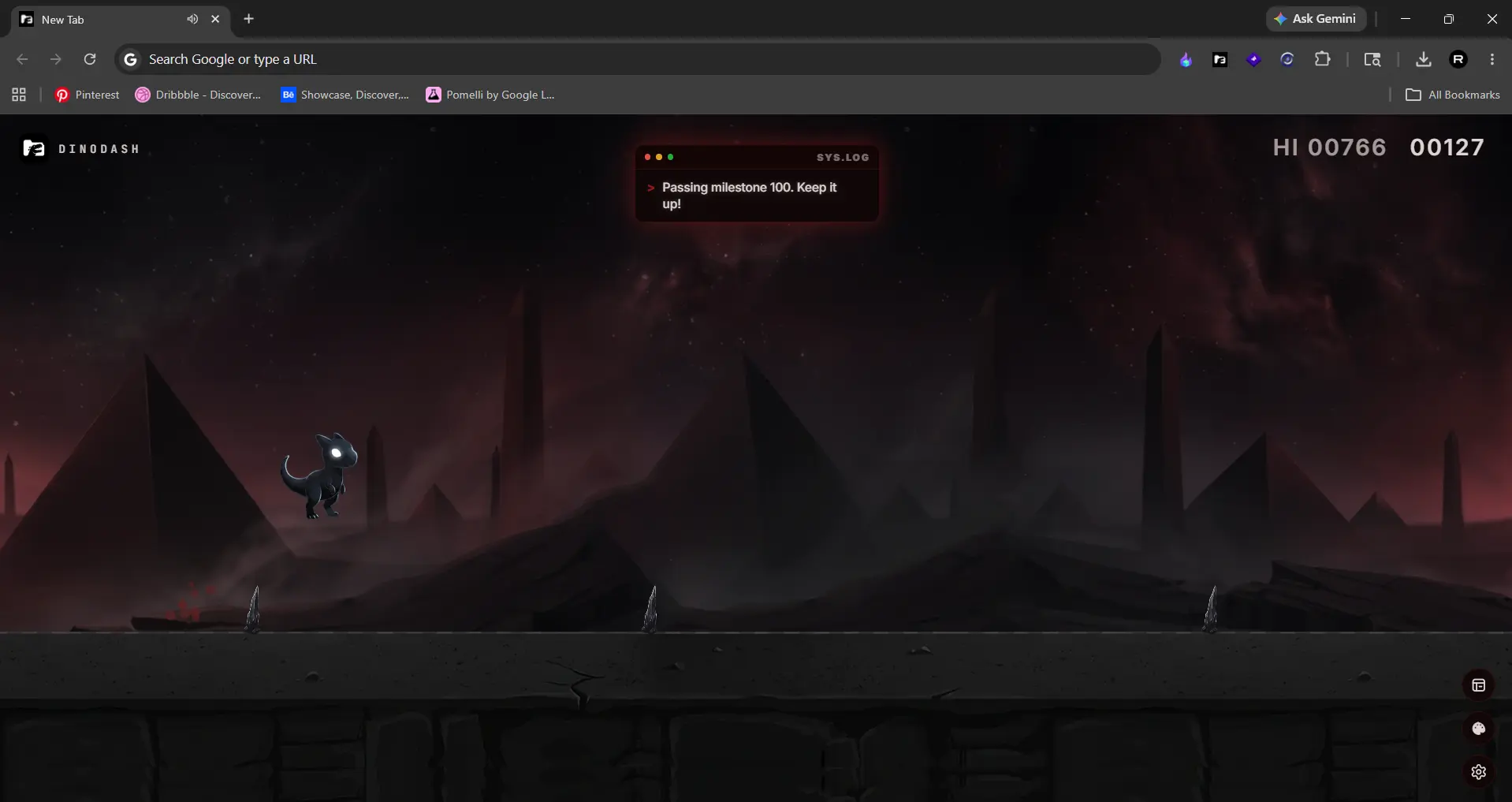
How to play
- Press
Spaceto start - Press
Spaceor↑to jump - Press
↓to crouch - Avoid cacti and flying obstacles
- The game speeds up the further you run
What's special
- Smoother movement than the original
- Particle effects that react to your jumps and crashes
- Your high score is saved automatically and shown at the top of the page
- Stays stable even if you switch tabs mid-game
Themes
DinoDash ships with two themes that change the entire look of the new tab.
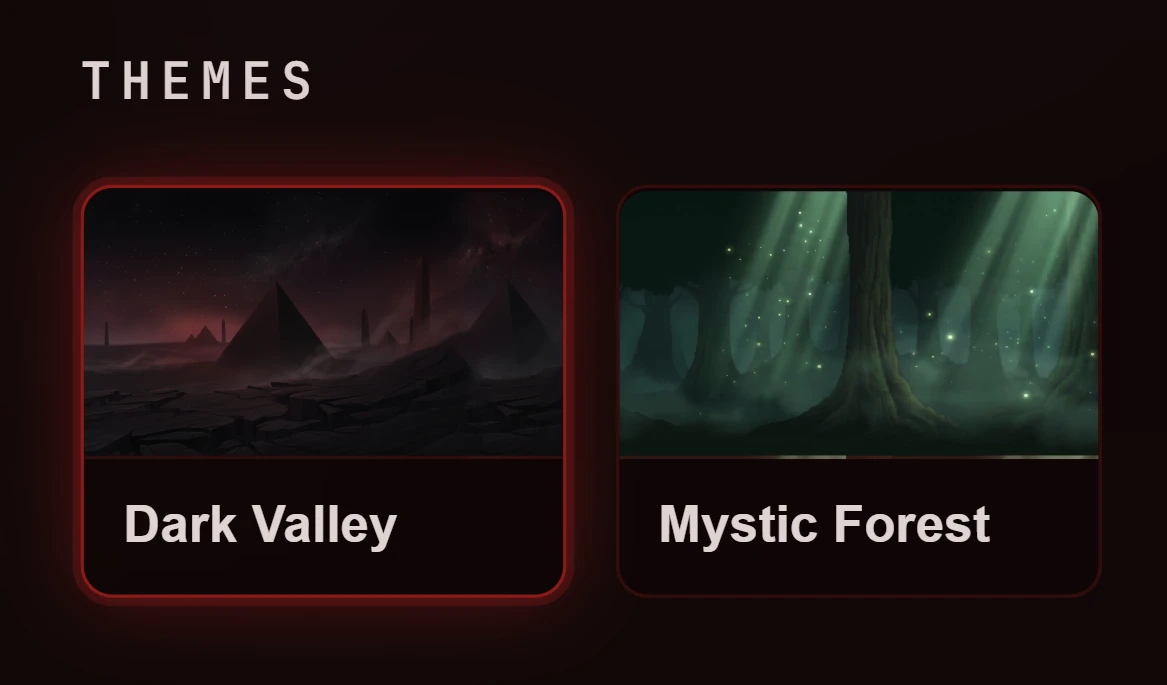
| Theme | Vibe |
|---|---|
| Dark Valley | Deep crimson with a focused, late-night feel |
| Mystic Forest | Soft greens with a calm, daytime atmosphere |
Switching themes updates the game world, panels, sidebars, tooltips, and the toolbar popup in one go. No reload, no flicker.
You can switch themes from:
- The toolbar popup
- The Themes panel inside the new tab
Widgets
Widgets are the optional pieces of DinoDash you can turn on or off based on what you actually use.
How the manager works
- Open the widget panel from the new tab
- Active widgets appear as filled tags — tap the × to remove one
- Available widgets appear as dashed tags — tap the + to bring one back
It's the same pattern used in the History sidebar's category filter, so once you learn it, it works everywhere.
Widgets you get
| Widget | What it does |
|---|---|
| Today's Run | Daily checkpoint list in the top-right |
| Statistics | Your game stats panel and shortcut |
| Enhanced Mode | Quick toggle to turn the custom new tab on or off |
| Favourite Links | Foldered bookmark hub at the bottom-left |
| History Sidebar | Browsing memory and analytics on the right edge |
Today's Run
A small daily checkpoint widget pinned to the top-right of the page.
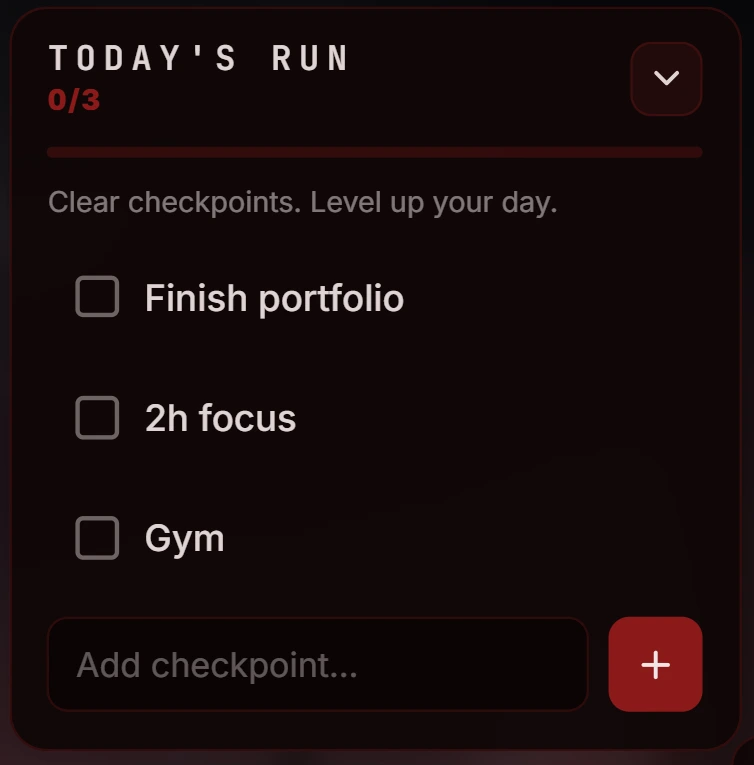
What it does
- Starts the day with three default checkpoints (you can change them)
- Add new ones with the inline input
- Tick them off as you go — the badge shows your progress as
done/total - Removes itself from your way when collapsed
- Resets every day automatically, so you start fresh each morning
Why use it
It's a quick, friction-free way to keep your day in view without switching apps. Open a new tab, see what's on the list, get back to it.
Favourite Links
A bottom-left bookmark hub for the sites you actually open every day.
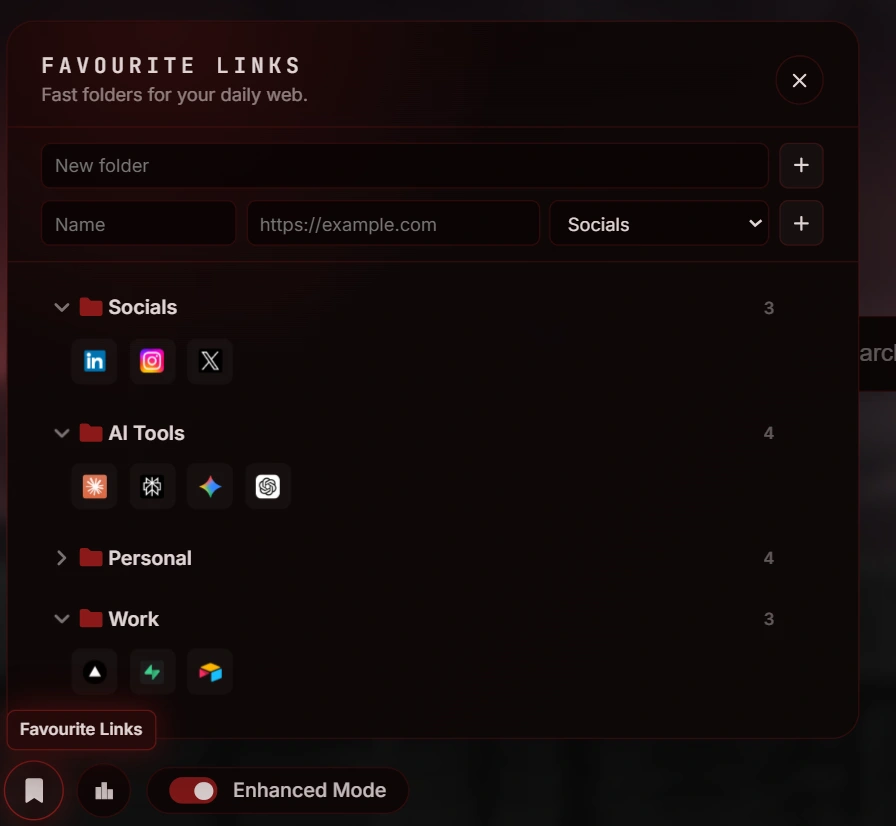
What it does
- Group links into folders — Work, Reading, Tools, whatever fits
- Each link shows its favicon for quick recognition
- Drag and drop to reorder links and folders
- Rename folders, delete links, or clear out a folder with a confirmation prompt
- Add new links from a simple form at the top of the panel
Why use it
Browser bookmarks live behind a click. Favourite Links lives right on your new tab, so the sites you actually use are one tap away.
History Sidebar
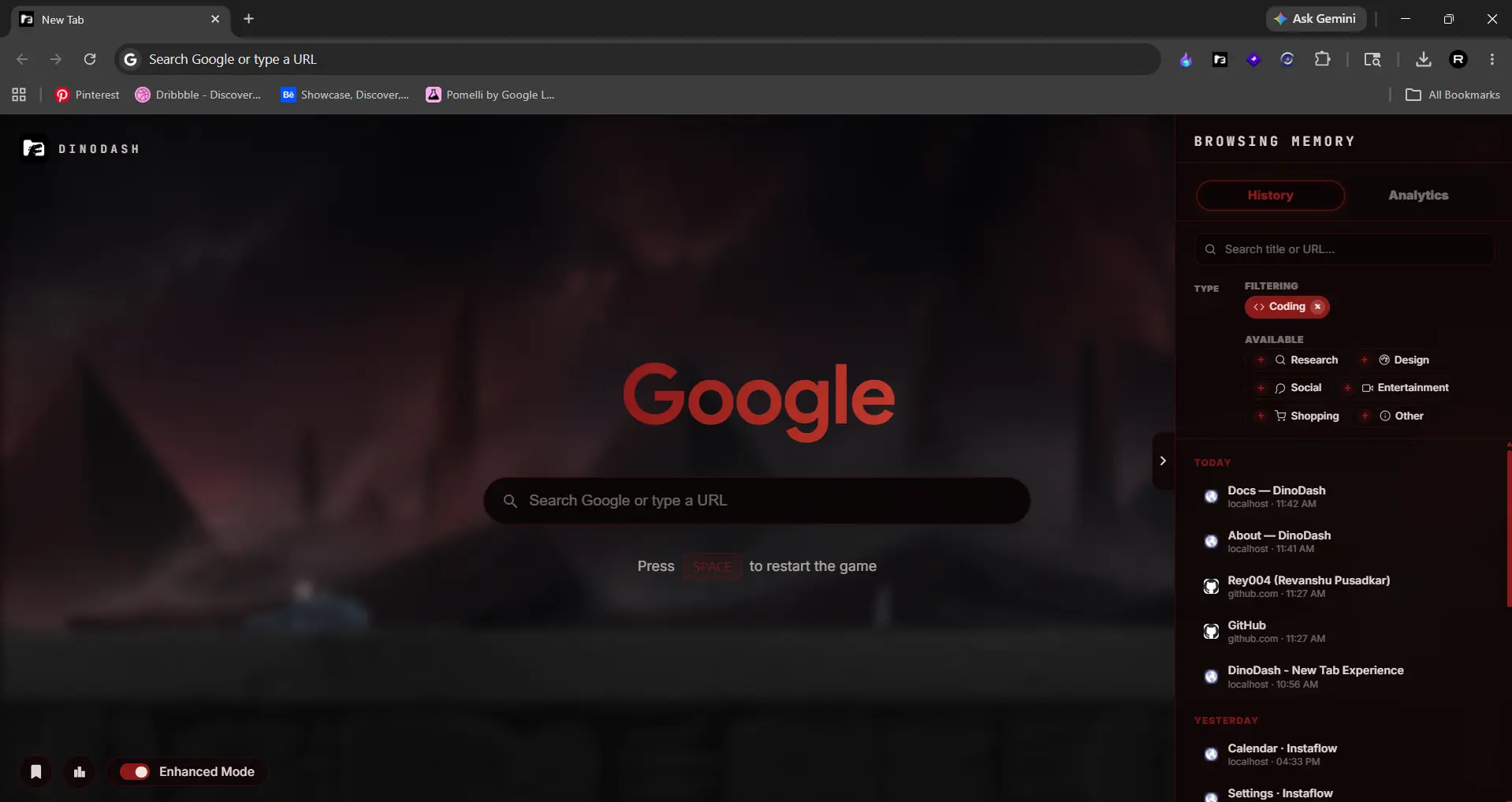
A sliding right-edge panel that turns Chrome's flat history into something you can actually navigate.
Opening it
- Click the small chevron handle on the right edge of the screen
- The panel slides in with two tabs at the top: History and Analytics
History tab
Search
A search box at the top filters your history live as you type. It looks at both the page title and the full URL, so you can find a page from either.
- Press
Escor tap the small × to clear the search
Type tags
A multi-select tag filter to narrow by category:
- Tap + on a category to add it as a filter
- Tap × on an active tag to remove it
- Pick as many as you want — the list shows pages from any of the active categories
- With nothing selected, every category passes through
Categories are figured out automatically from each site — Coding, Research, Design, Social, Entertainment, Shopping, and Other.
Pinned Memory
Star any history entry and it gets pinned to the top of the panel, where it stays across sessions. Useful for the page you keep coming back to but don't want to bookmark.
Grouping
History is split into easy-to-scan sections: Today, Yesterday, Past 7 Days, and Older Pages.
Per-entry actions
Hover any entry and you'll see:
- Pin — keep this page in Pinned Memory
- Delete — remove it from your Chrome history (with a confirmation)
- Tooltip — title, host, date, and visit time at a glance
Clicking the entry opens it in a new tab.
Analytics
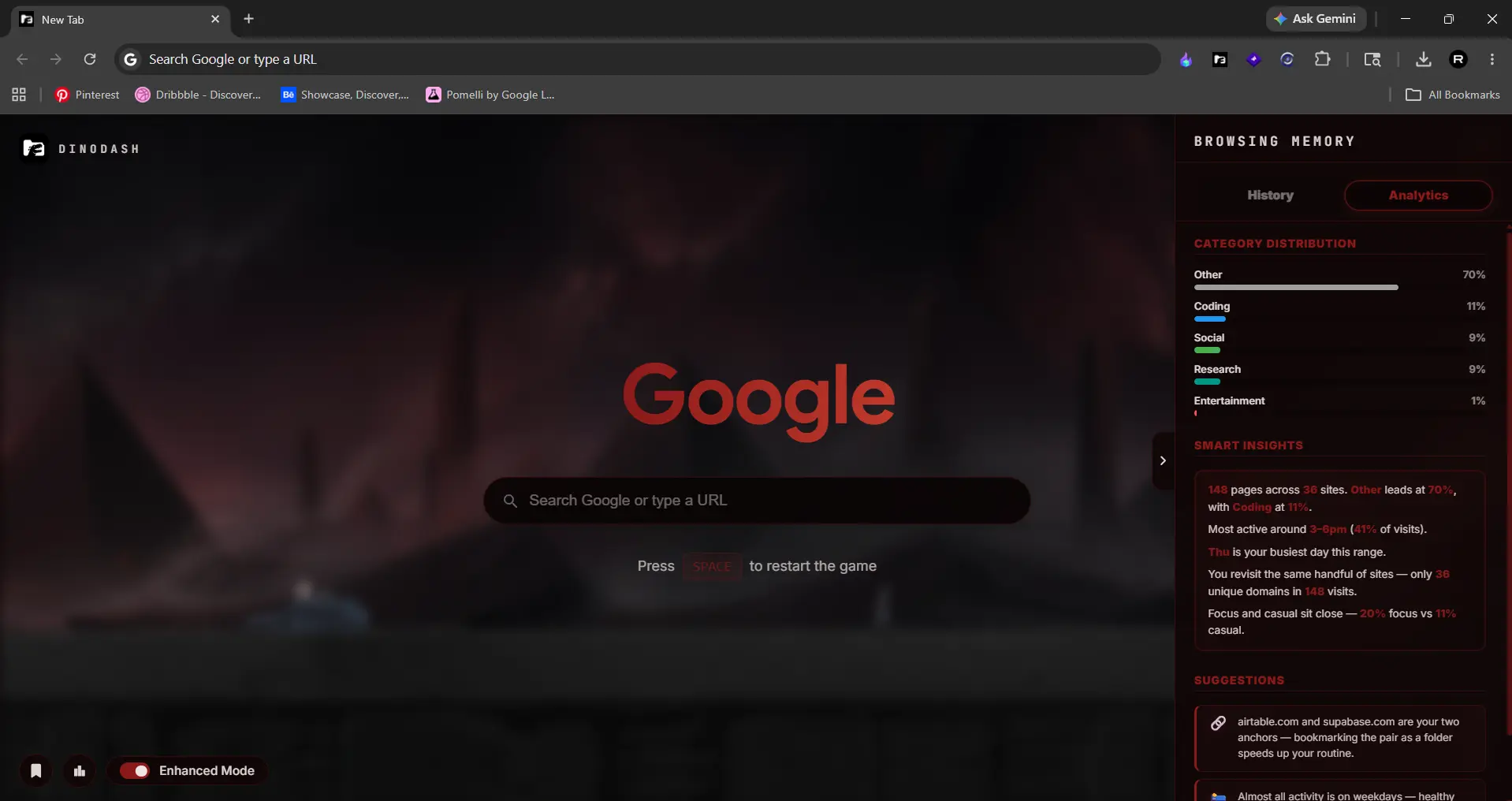
The second tab inside the History sidebar. It turns your raw browsing data into something you can read at a glance.
Category Distribution
A simple stack of bars showing how your time splits across categories. Each category has its own color so you can spot patterns at a glance.
Smart Insights
A short narrative summary that describes what's happening in your browsing — written in plain language, with numbers pulled from your actual data. Lines update based on what's true for you, including:
- How many pages you've tracked and across how many sites
- Which category leads, and by how much
- When in the day you're most active
- Whether you tend to anchor on one or two sites or explore widely
- Whether your time leans toward focus work or casual browsing
- How weekends and weekdays compare
Every line changes as your browsing changes — it's a live snapshot, not a template.
Suggestions
Practical, gentle nudges that respond to your patterns. They're tied to real signals in your data, so they only show up when relevant. Examples include:
- Focus-block tips when casual browsing dominates
- Anchor-site reminders when one host carries most of your day
- Late-night browsing nudges when peaks land after midnight
- Diversity prompts when your browsing feels narrow
- Shopping wait-time tips when shopping spikes
- Encouragement when your focus rhythm is strong
You'll typically see two to four suggestions at a time, ranked by what matters most for your current patterns.
Game Statistics
A panel that tracks how your runs add up over time.
| Stat | What it tracks |
|---|---|
| Hi Score | Your all-time best |
| Last Score | Your most recent run |
| Games Played | Total runs |
| Average Score | Your typical performance |
| Total Distance | How far you've run across every game combined |
| Total Play Time | How much time you've spent playing |
These survive across sessions, so you can watch them grow over weeks and months.
Toolbar Popup
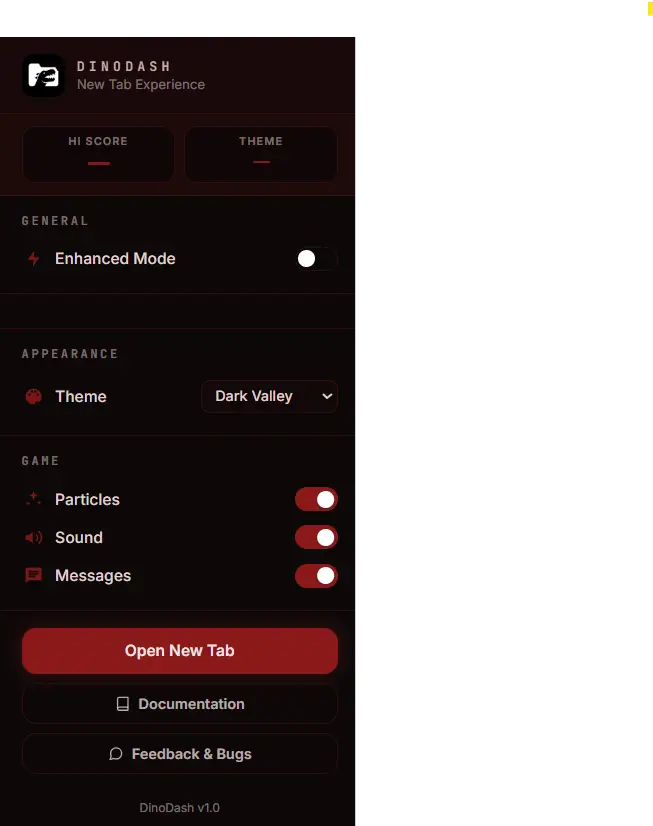
Click the DinoDash icon in your Chrome toolbar to open a compact control panel.
What's inside:
- Enhanced Mode — master switch. When off, you get Chrome's default new tab back
- Theme — switch themes with a live preview
- Particles — toggle the in-game particle effects
- Sound — mute or unmute the game audio
- Show FPS — overlay a real-time frame counter on the new tab
- Hi Score — your current best, always visible
- Open New Tab — launch DinoDash directly without opening a new tab manually
Everything you change in the popup updates the open new tab right away, and vice versa.
Audio
Subtle game sound effects that react to jumps, score milestones, and crashes. Each effect is short and unobtrusive.
You can mute the audio from:
- The toolbar popup
- The settings panel inside the new tab
Tooltips
Every interactive surface in DinoDash has a small themed tooltip on hover or focus. Hover the right-edge handle and you'll see "Browsing History." Hover a category icon and you'll see what it does. The tooltip layer matches the active theme — accent color, panel background, glow — so it always looks like part of the page.
This makes the whole UI more discoverable without filling the screen with labels.
Privacy
DinoDash is fully local.
- All your data — stats, pinned history, daily checkpoints, favourite links, theme choice — stays in your browser's local storage
- No accounts, no sign-in, no telemetry
- The only outside requests are favicon lookups, used to show site icons next to your history and favourite links
- Browser history is read locally, only to power the History sidebar's search, pin, delete, and analytics — it never leaves your device
You can uninstall the extension at any time and your data goes with it.
FAQ
Does DinoDash work offline? Yes. Everything runs locally. The only thing that needs the network is the small favicon next to a link, but the rest of the experience works without it.
Will my data sync across devices? Not in v1.1.0. Your data stays on the device where you installed the extension.
Can I bring back the default Chrome new tab? Yes. Open the toolbar popup and turn off Enhanced Mode. Chrome's default new tab returns immediately. Turn it back on whenever you want DinoDash again.
How does the History sidebar know which category a site belongs to? It looks at the site's host name and matches it against a built-in list of common services. If a site doesn't match any known category, it goes into "Other."
Will more themes be added? That's the plan. Future versions will add more themes and color options.
Where can I report bugs or request features? Open an issue on the project's repository. Feedback is genuinely welcome.
Need something not covered here? Reach out through the project repository.